Installation
Depending on the model of the tablet or differences between Android versions the installation process may differ for the example displayed.
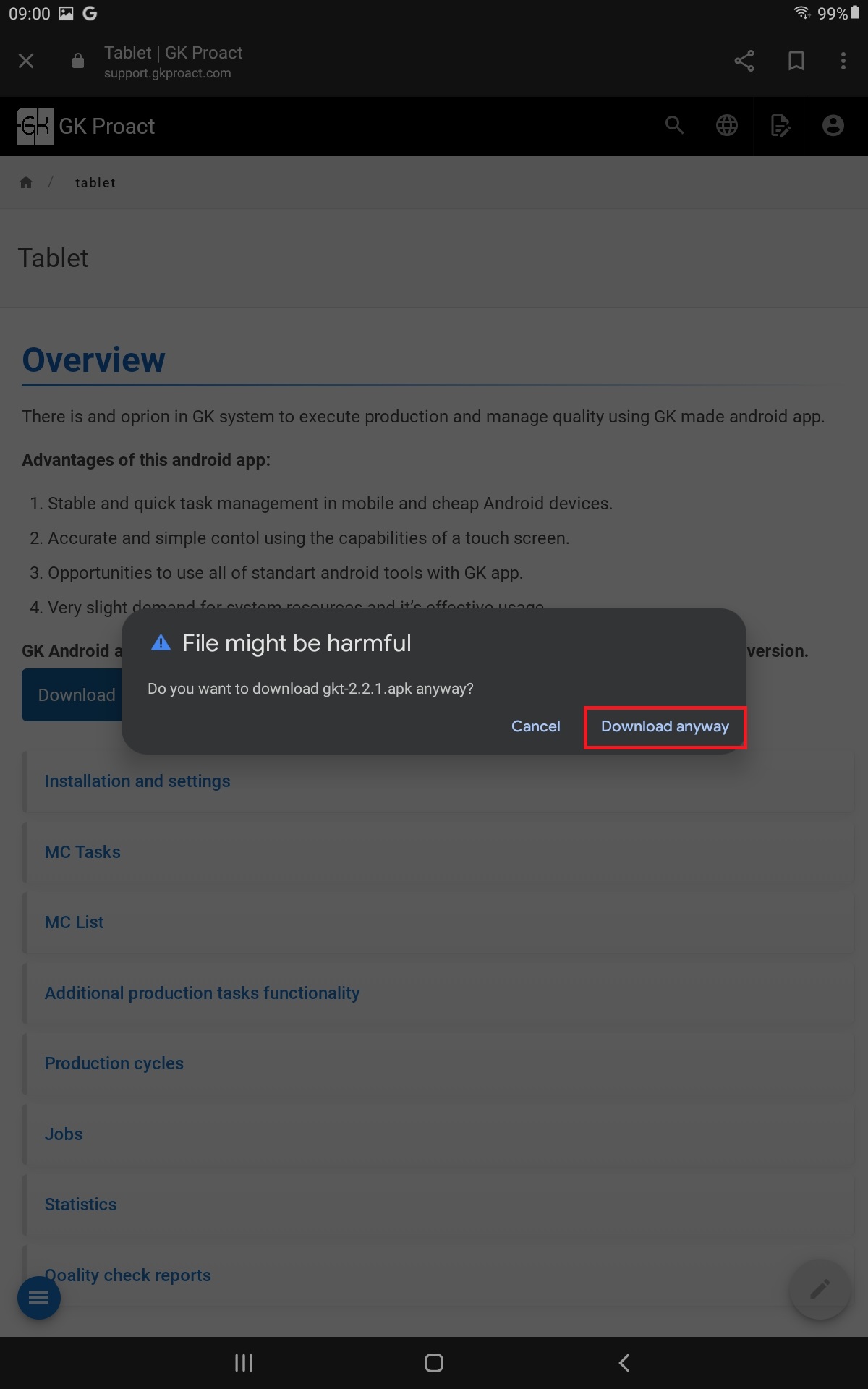
First of all go to the download page of the app in a browser support.gkproact.com/en/tablet and click on the "Download" button. When a dialogs appears that the file might be harmful, click on "Download anyway". Don't worry, this message appears because the file is not on a verified service like "Google play" and is downloaded form GK site directly. This part of the site can be reached without a login.

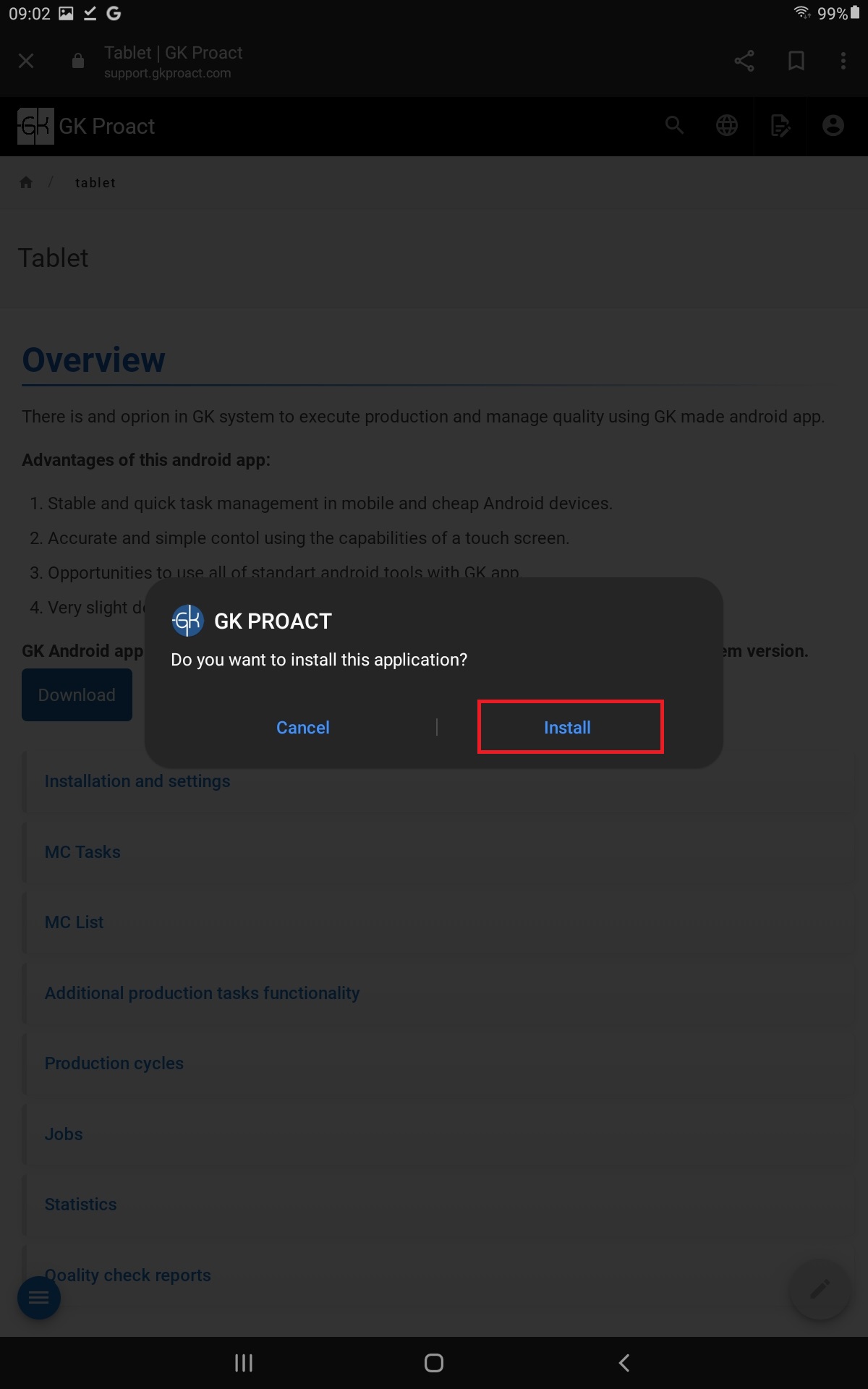
When the file is downloaded click on "Open". Than a dialog should appear with a button "Install". If you missed the open option, the downloaded file can always be located in your tablet's downloads folder.

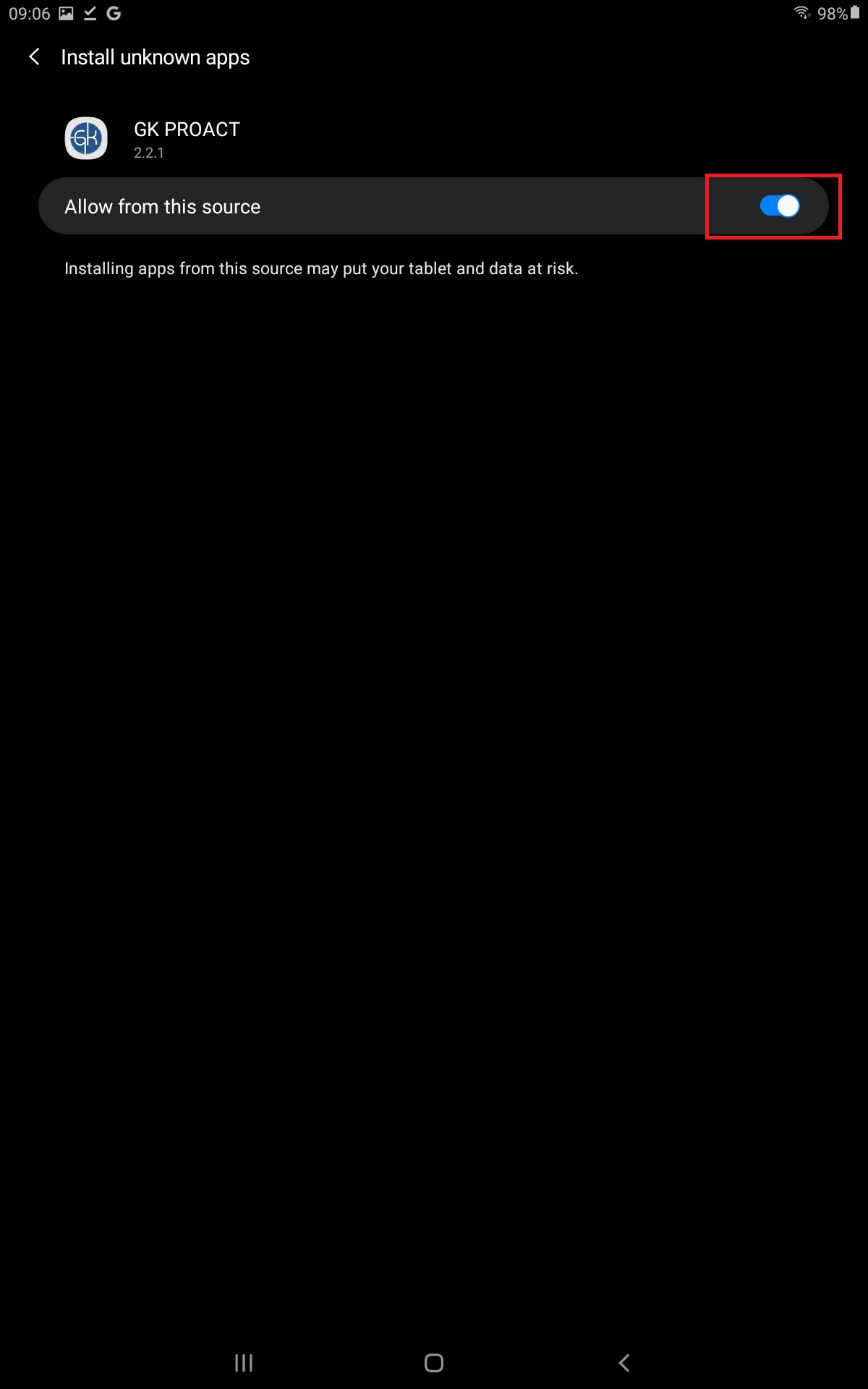
Based on different security settings, some part of tablets also dont allow to install or update apps form unverified source, so a dialog might appear for confirmation at any time. If this happens, click on "Settings". Once there, check the setting "Allow from this source" and go back to installation with the back arrow.

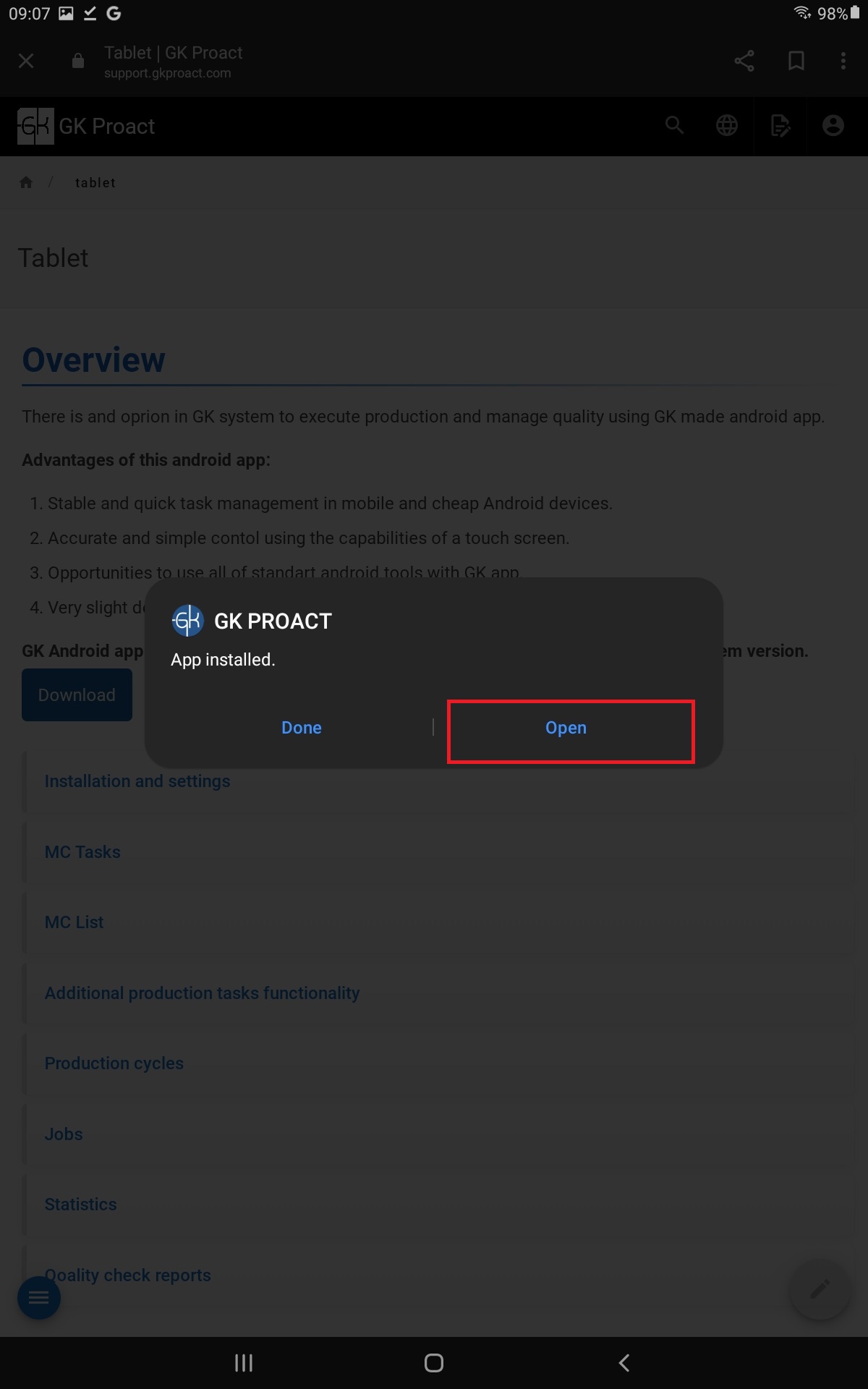
Wait until the app is installed. After that click "Open". The GK app will open and you will need to connect the app to the main system.

Connecting app to the system
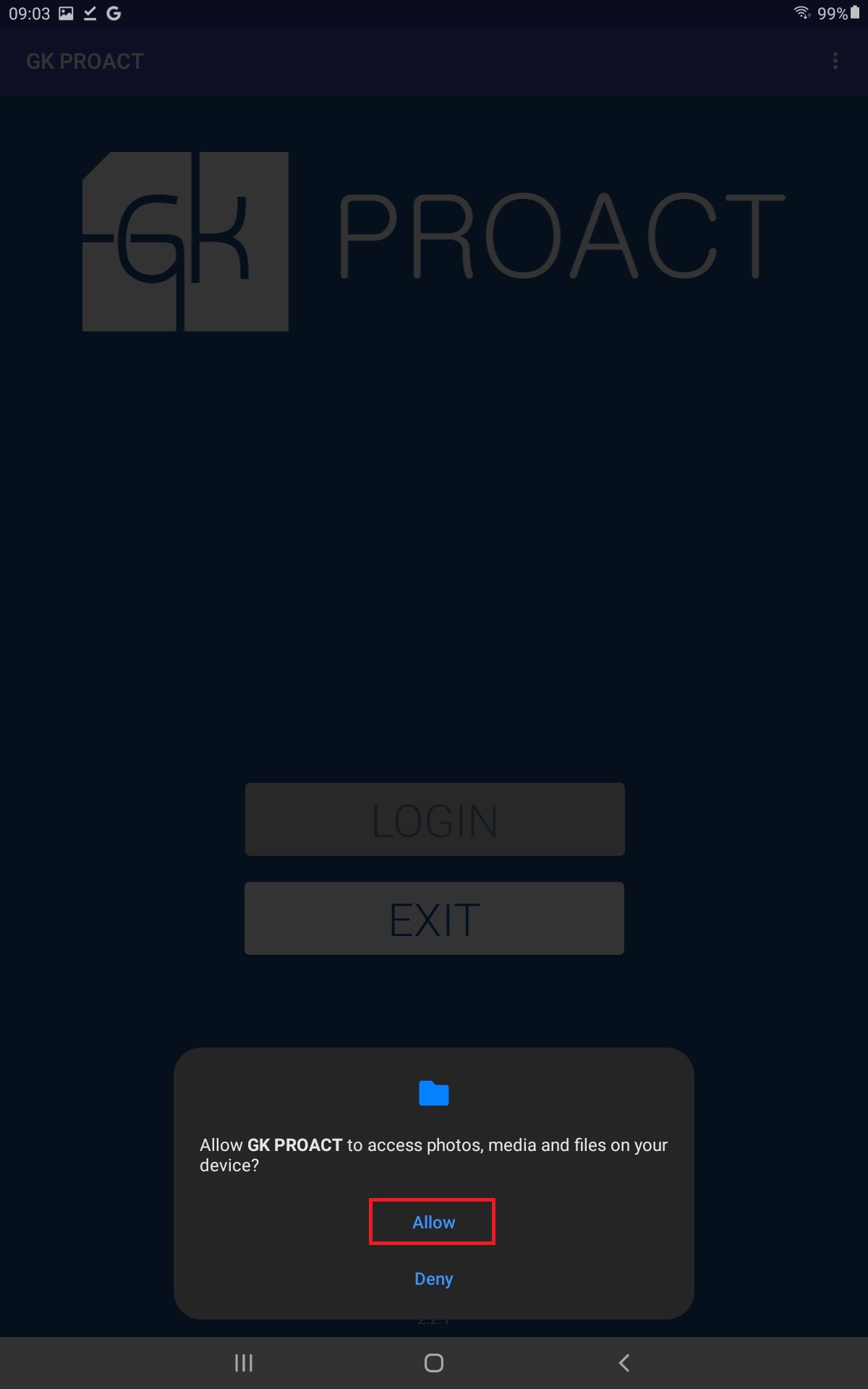
When the app opens for the first time, the user will be asked to allow Gk to save picture and files on the device. Click "Allow" on both. Gk needs this access to save pictures taken in some functions and to use the camera for scanning purpose.

After installing Gk app, the login button will be inactive and that is because direct connection is needed with a machine center. In order to connect tablet to the system, first you will need to print (or bring the tablet to a computer) and scan a generated machine center QR code.
Machine center QR code can be generated by going to: Settings > Production > Machine centers. Choose a machine center and click on a button in the toolbar called "Card". If more information is needed - Machine centers.
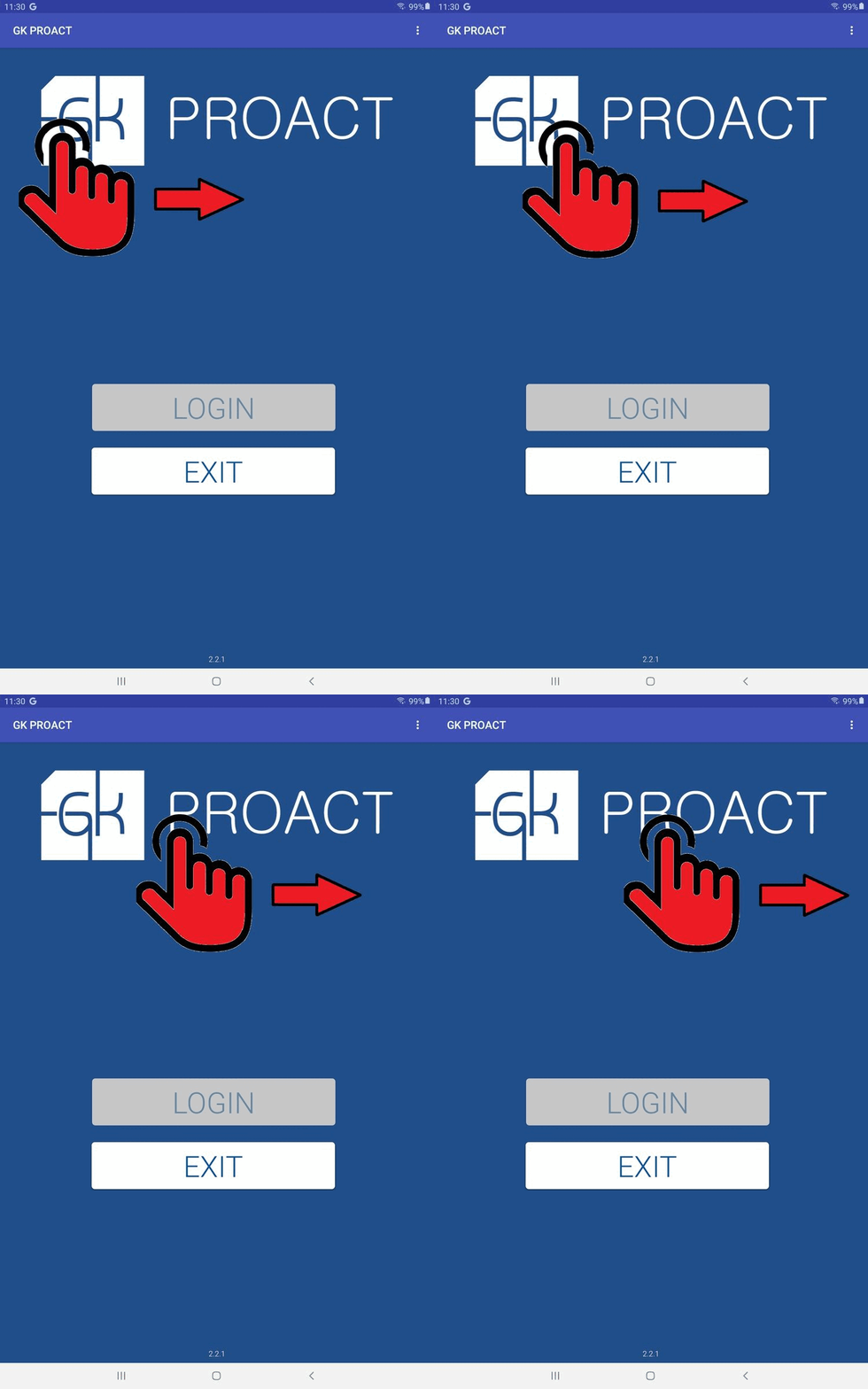
Once we have a QR code in front of us, swipe the GK logo, from left to right and a scanning function should open. Scan the Machine center QR code.
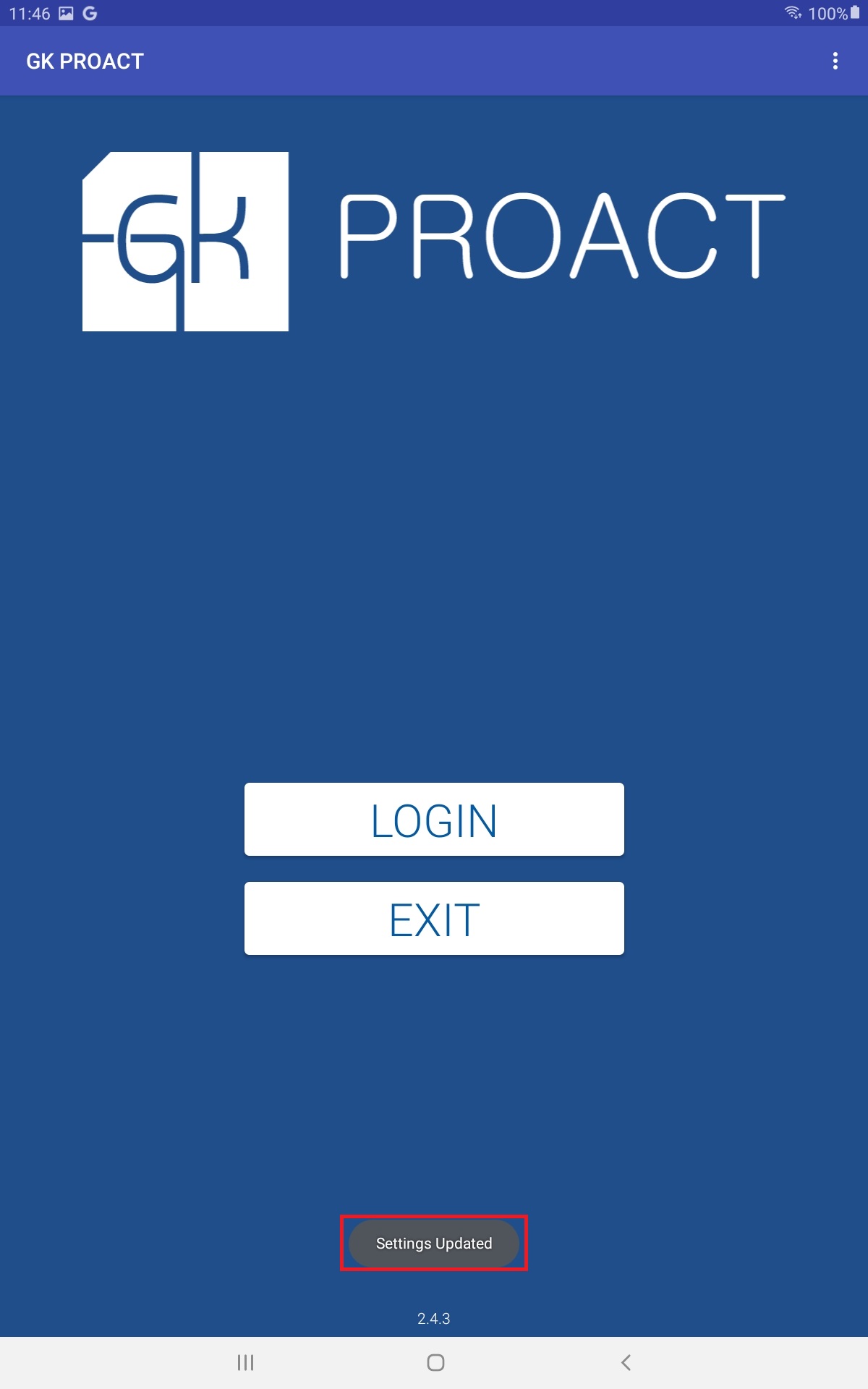
Once scanned, will display a message that the settings were updated. If we scanned the correct QR code and tablet connected to the system, the login button will be available. (Unless there were updates).
If the button is inactive, these are the most common reasons why:
The tablet is not connected to the system, to any machine center
There is no internet connection
The app needs an update
Settings
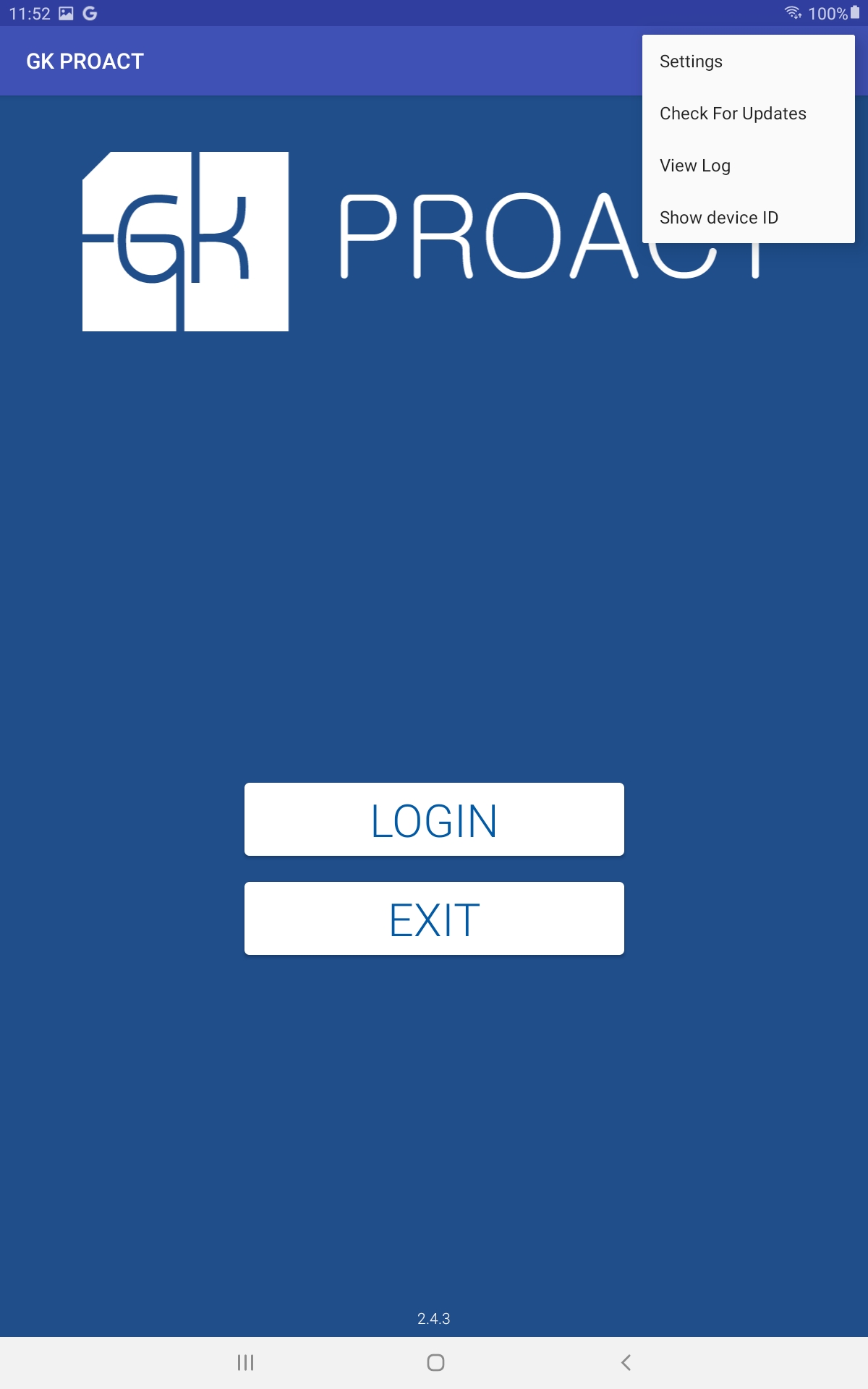
In the top right corner of the app there are three little dots. By clicking on them you get opetions to choose few more supportive tools:
- Settings - To open up settings window.
- Check For Updates - Planšetukas pasitikrina ar yra atnaujinimas. Atnaujinimų paieška veikia tik tuomet jei yra sudėti teisingi programėlės nustatymai. The tablet checks for updates. Update searching only works if tablet is connected to the system.
- View Log - Opens up a log file
- Show device ID - Show the device's ID on which the app is installed

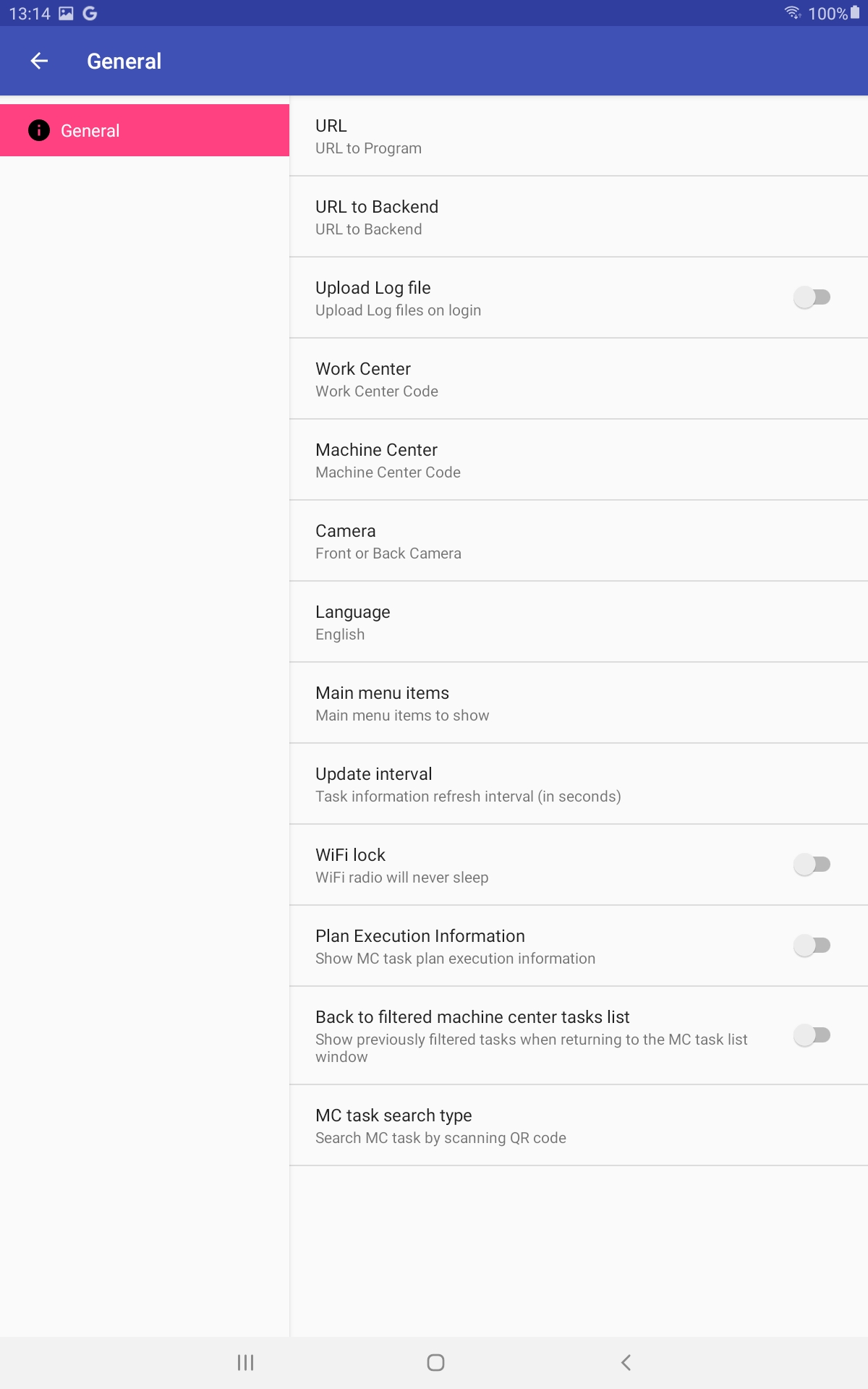
In the settingsNustatymų lange spaudžiame ant mygtuko "Bendri". Atsidariusiame lange gaunamas nustatymų sąrašas kurį galima koreguoti:
- Url - link or IP adress to the main system for connection.
- Url to Backend
- Upload Log File
- Work Center - a work center is set for this tablet
- Machine Center - mchine center (or workplace) is set for this tablet.
- Camera - choose which camera is used for scanning and foto functions: fornt or back.
- Language - language of the app interface
- Main menu items - users can choose which menu items are visible on this tablet.
- Update interval - the interval when app sends a request to the main system to update its data. The smaller the number, the faster data is updated and the higher the system load.
- Wifi lock - if checked the tablet will never go to wifi saving mode while using the app and wifi wont disconnect.
- Plano Execution Information - vykdant ĮC užduočių, virš laiko juostos rodomas informacinis burbulas kuriame rodoma kiek per praėjusį gamybos laiką turėjo būti pagaminta. If check, next to each task's timer a bubble will appear indicating how much of the task's quantity should be done by now.
- Back to filtered machine center task list - Kai grįžtame į užduočių sąrašą sąrašas lieka išfiltruotas koks buvo.
- MC task search type - this setting tells the scanner how to look for machine center task when a barcode is scanned.
Universal- looks at scanned barcode's prefix, and the app determines itself what was scanned:
- 91 - production lot.
- 92 - quality check report.
- 93 - Machine center task code.
Machine Center task- if selected MT'ask is allways found by its code. QR code must not have a prefix.
Production lot- if checked MT'ask is found by production lot that is connected to the task.
Quality report- if checked MT'ask is found by quality check report that is connected to the task.
Updates
When MC QR Code is scanned all of the base settings are applied (in the previous step), because they are in the QR code itself.
App updates come together with the main system updates. The app automatically or by pressing the "check for updates" button finds itself updates, and a prompt to update will appear on the screen. In the dialog click "Yes" and then in the next one click "Install".

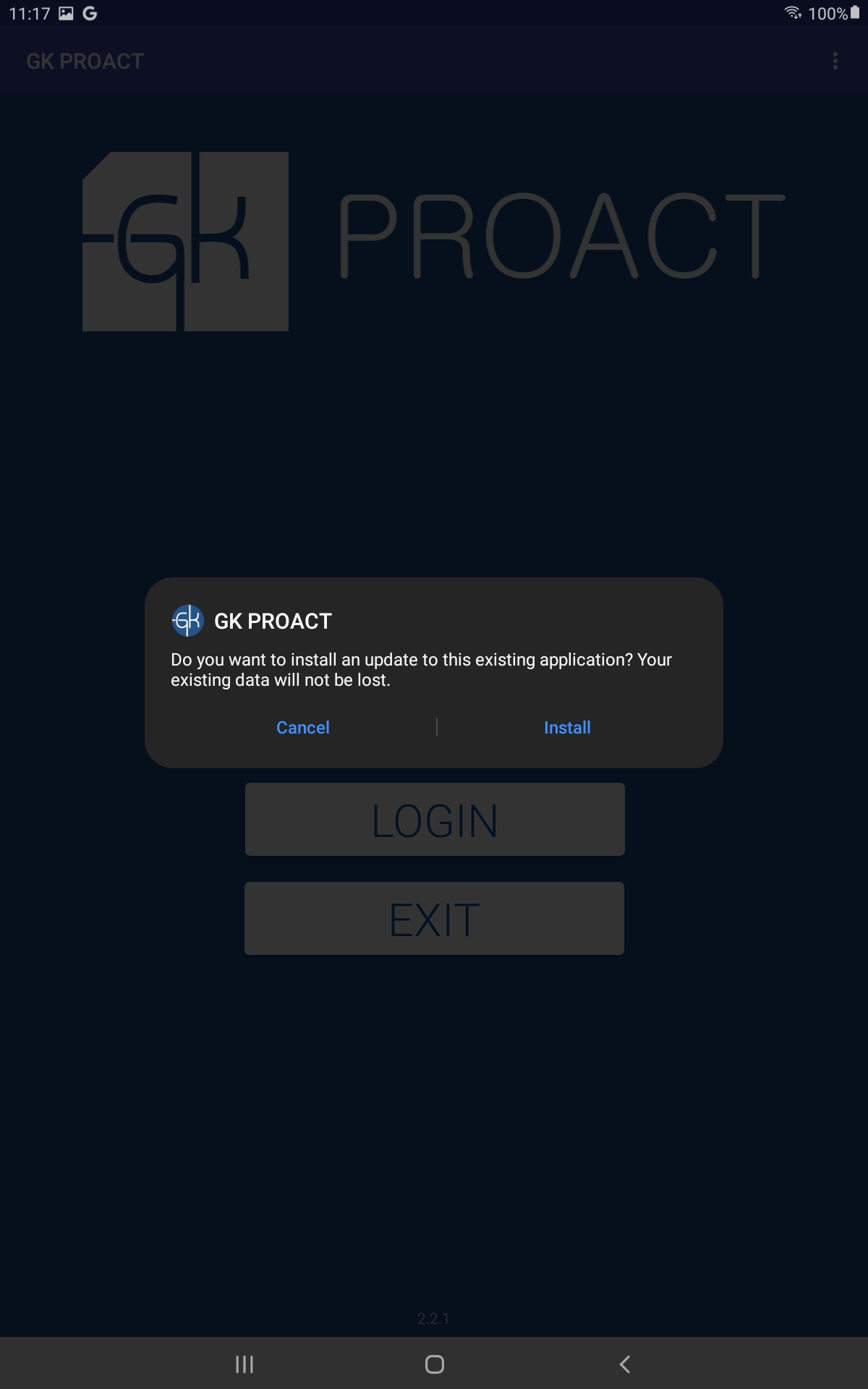
Now just wait for the app to download its update and install it. At any point you might be asked for the same verification, because we are not dowloading the app form a verified source. The process is the same, so just follow instructions from the installation guide and tick all the checkboxes.
After downloading and installation is complete a message will apear to open the app again. After that its is done and its should be updated.